Examples of documents with visible connections
This page was last updated on February 27, 2026.
Here you’ll find a few examples of documents that use visible connections. Their purpose is simply to show the new capabilities now available to you. On their own, these examples aren’t particularly useful.
In the near future, I’ll try to create materials that are useful, and I’ll also try to encourage others—mainly teachers and other educators—to create their own materials that make use of visible connections.
First, make sure you have installed Visible Connections browser extension.
First example: a page connected to two other pages on other websites
Open this page and scroll until you see highlighted texts. Click on them and the secondary documents will be loaded. You will see visible connections.
Second example: a page from another site connected to two other pages.
Open this page. Click "download all connected documents" button that is located in the top right corner of the window. What's interesting about this document, is that the main text (the book) is actually fetched from another site.
Third example: a page connected to a page on another website
Open this page.
Downloading examples in the LZ Desktop app.
First, make sure that you have installed LZ Desktop and it's currently running.
Also install the extension LZ Desktop Helper.
Now you can open the same examples in the browser and then download them into the app using the extension. Open extension's popup and click "Download" button.
In the app you download each connected document individually.
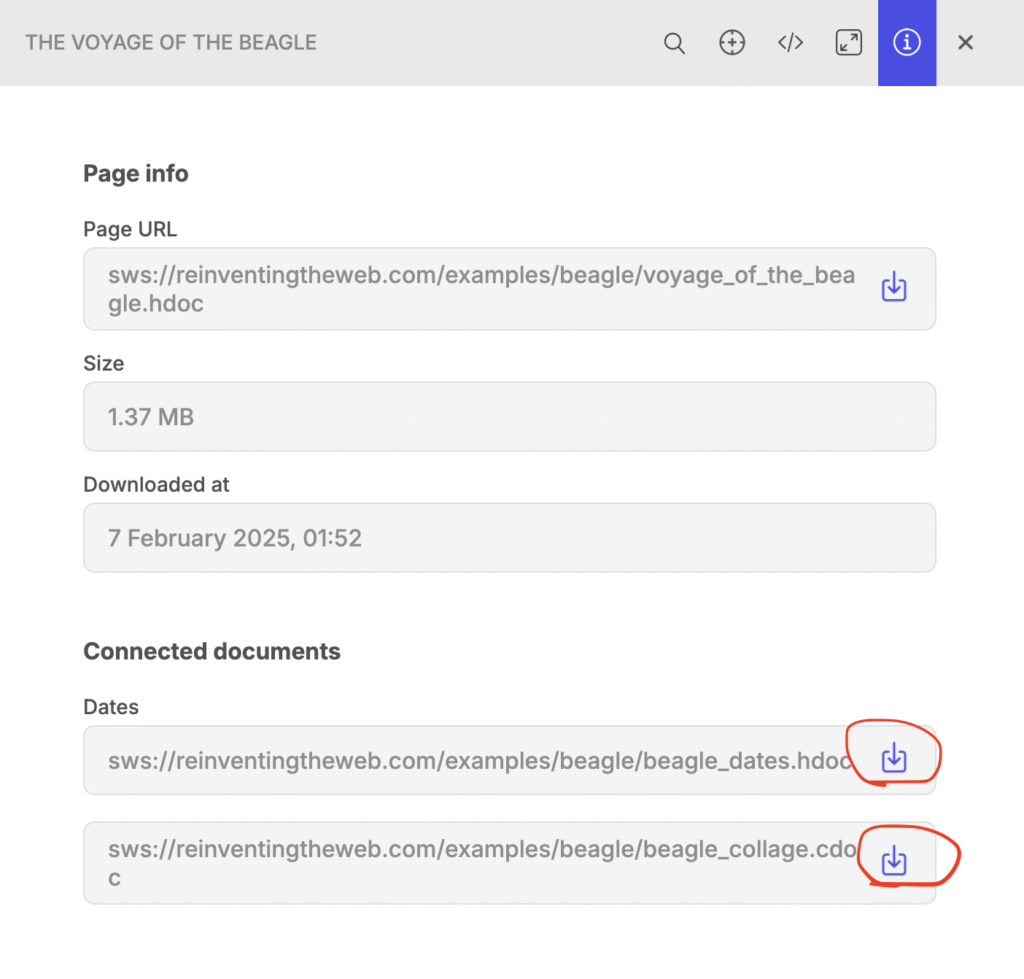
You'll have to put each document on the canvas.
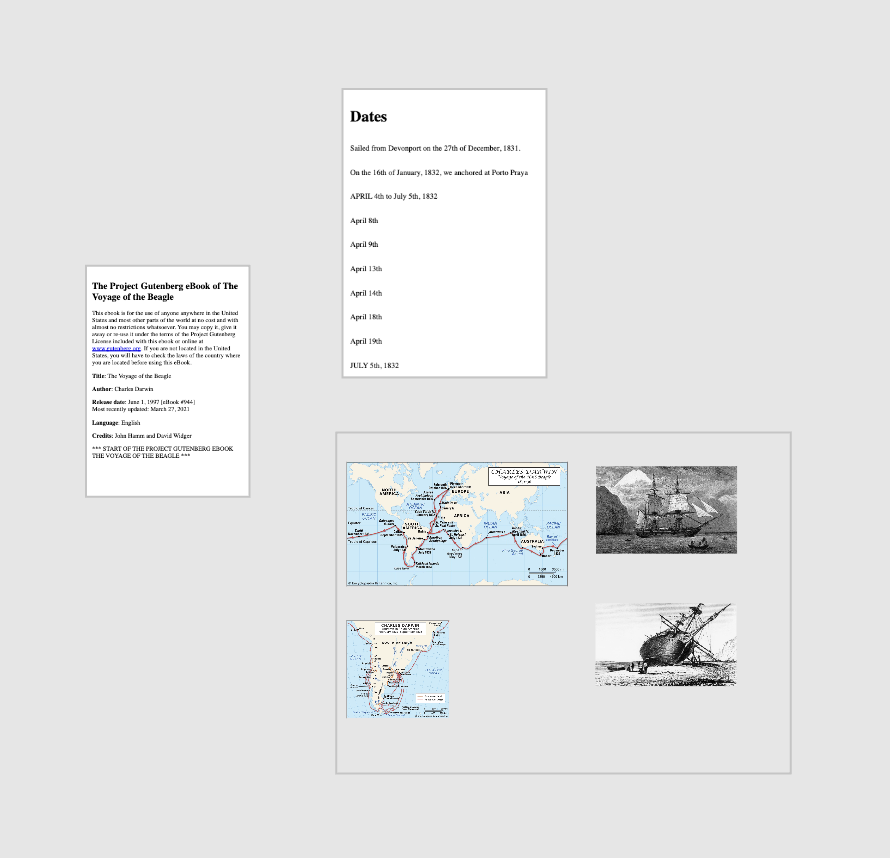 Download main document